SEO How-To Article Generator GPT
Upload a rough post.txt file with your step-by-step notes and this custom GPT will transform it into a fully SEO-optimized how-to article. Choose between Markdown, HTML, or Plain Text output formats.
Try This GPT on ChatGPT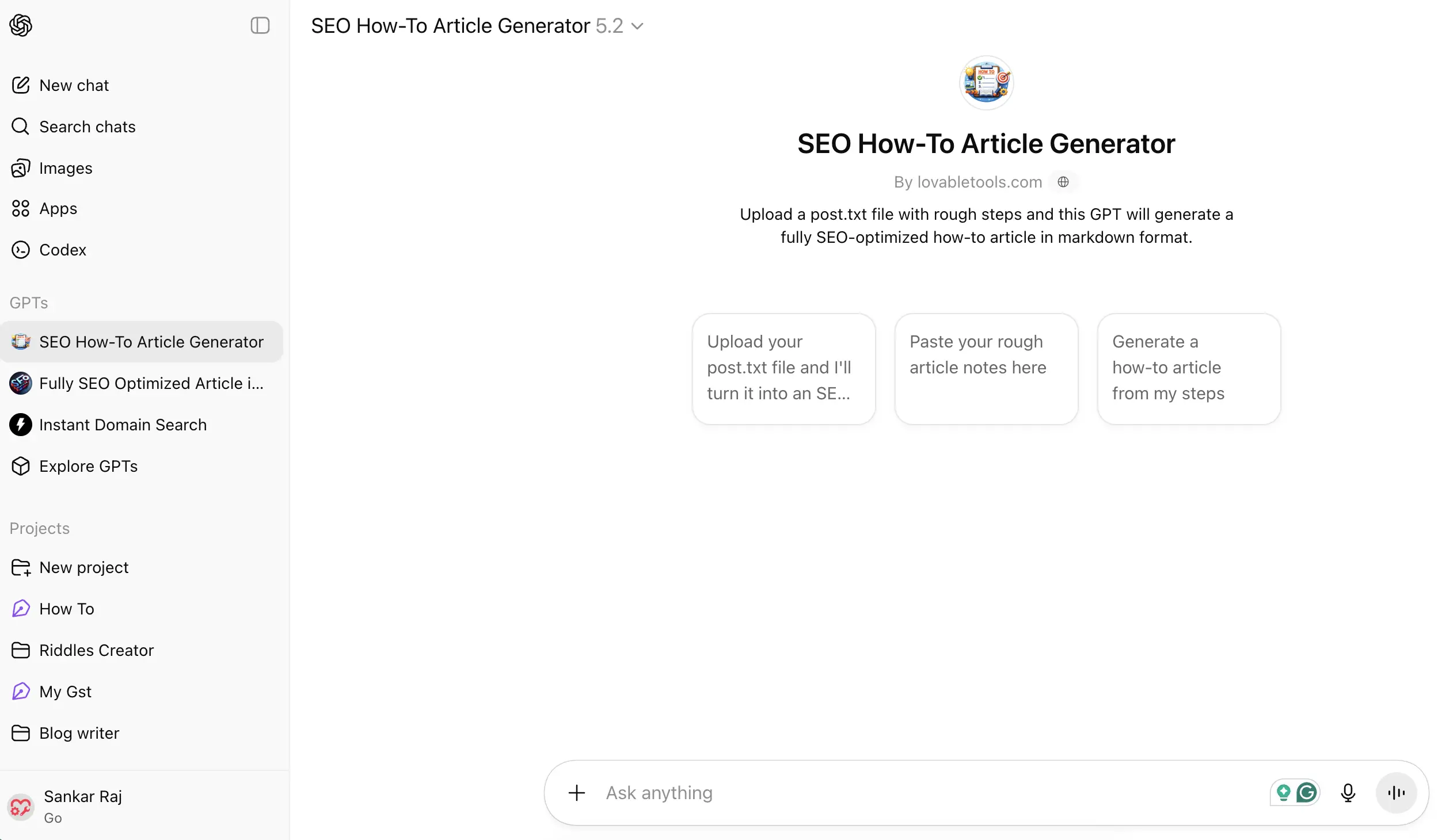
What This GPT Does
Full SEO Optimization
Generates keyword-rich titles, meta descriptions, LSI keywords, and proper heading hierarchy automatically.
Multiple Output Formats
Get your article in Markdown, HTML, or Plain Text — whatever suits your publishing workflow.
Featured Image Generation
Optionally generate a professional blog-style featured image for your article.
Auto FAQ Section
Automatically generates relevant FAQ questions and answers for better search visibility.
Table of Contents
Creates clickable anchor-linked table of contents for easy navigation.
Step Integrity
Never skips, reorders, merges, or changes the meaning of your original steps.
How to Use
Create a .txt file with your rough notes (title, intro, and numbered steps) — or you can simply type/paste them directly into the GPT chat.
Open the GPT in ChatGPT and upload your file or paste the text.
Answer the customization questions (featured image, TOC, title style, etc.).
Get your fully SEO-optimized article ready to publish!
📄 Example Input (post.txt)
title: how to create google form

intro: what is google form and use cases explain this step by step guide

step 1: search in google with google form and click first link or click to go
https://docs.google.com/forms use your gmail account to login.
[screenshot image]

step 2: click on the Start a new form button.
[screenshot image]

step 3: now gemini will ask you to enter the description of the form.
enter the description and click on the create button.
[screenshot image]

step 4: now you can see the form is created. if you want to add more
questions click on the try again gemini button.
[screenshot image]
💡 The GPT will transform this rough text into a fully SEO-optimized article while keeping all your steps intact.
💬 GPT Will Ask You These Questions
Before generating, the GPT asks what to include. Here's an example:
⌨️ Example Answers
no, yes, b, yes, yes, yes, a
💡 You can provide all your answers at once by separating them with commas.
✨ Example Output (Optimized Article)
# How to Create a Google Form: A Complete Step-by-Step Guide (2026)

<!-- Meta Description: Learn how to create a Google Form in 2026 with this easy step-by-step guide. Create forms using Gemini AI, add questions, and share in minutes. -->

## Introduction

If you want an easy way to collect responses, run surveys, create quizzes, or gather feedback, **Google Forms** is one of the best free tools available. Learning **how to create a Google Form** can help you streamline data collection for school, business, events, or personal use.

Google Forms allows you to design custom forms in minutes. With built-in AI features like Gemini, you can even generate questions automatically. In this step-by-step guide, you’ll learn exactly how to create a Google Form in 2026, from logging in to generating questions using Gemini.

---

## Table of Contents

- [Step 1: Open Google Forms and Sign In](#step-1-open-google-forms-and-sign-in)
- [Step 2: Click on Start a New Form](#step-2-click-on-start-a-new-form)
- [Step 3: Enter Your Form Description Using Gemini](#step-3-enter-your-form-description-using-gemini)
- [Step 4: Add More Questions Using Try Again Gemini](#step-4-add-more-questions-using-try-again-gemini)
- [FAQ](#faq)
- [Conclusion](#conclusion)

---

## Step 1: Open Google Forms and Sign In

First, open your browser and search in Google for **Google Form**. Click on the first official link, or go directly to:

`https://docs.google.com/forms`

Now, log in using your **Gmail account**. If you are already signed in, Google Forms will open automatically.

Alt: Google search results showing Google Forms link and Gmail login page
[screenshot image]

> 💡 Tip: Make sure you are logged into the correct Google account if you manage multiple Gmail accounts.

---

## Step 2: Click on Start a New Form

Once Google Forms opens, you’ll see the dashboard.

Click on the **“Start a new form”** button to create a fresh form from scratch.

This will open a blank form template where you can begin building your survey, quiz, or feedback form.

Alt: Google Forms dashboard showing Start a new form button
[screenshot image]

> 💡 Tip: You can also choose from pre-made templates if you don’t want to start from scratch.

---

## Step 3: Enter Your Form Description Using Gemini

Now, Gemini AI will ask you to enter a description of the form you want to create.

In the description box, type what your form is about. For example:
- Customer feedback form
- Event registration form
- School quiz
- Job application form

After entering the description, click on the **Create** button.

Gemini will automatically generate relevant questions based on your description.

Alt: Gemini AI prompt asking for form description in Google Forms
[screenshot image]

> 💡 Tip: Be specific in your description. The more details you provide, the better the generated questions will be.

---

## Step 4: Add More Questions Using Try Again Gemini

Now you can see that your form has been created with questions.

If you want to add more questions, simply click on the **“Try Again Gemini”** button. This will generate additional questions based on your original description.

You can edit, delete, or rearrange questions anytime to customize your form exactly how you want.

Alt: Google Form created with questions and Try Again Gemini button visible
[screenshot image]

> 💡 Tip: Always review the generated questions before sharing the form to ensure accuracy and clarity.

---

## FAQ

### What is Google Forms used for?

Google Forms is used to create online surveys, quizzes, registration forms, feedback forms, and data collection forms. It automatically stores responses in Google Sheets.

### Is Google Forms free to use?

Yes, Google Forms is completely free with a Gmail account.

### Can I edit a Google Form after creating it?

Yes, you can edit questions, add new ones, change themes, and modify settings even after creating the form.

### How do I share my Google Form?

After creating your form, click the **Send** button in the top right corner. You can share it via link, email, or embed it on a website.

### Does Google Forms work on mobile?

Yes, Google Forms works on mobile browsers, and respondents can easily fill out forms from their smartphones.

---

## Conclusion

Now you know exactly how to create a Google Form step by step in 2026. From logging in to using Gemini AI to generate questions, the process is simple and fast.

Whether you’re collecting feedback, running a survey, or creating a quiz, Google Forms makes it easy to gather and manage responses efficiently.

Start creating your form today and make data collection effortless!
Frequently Asked Questions
Do I need ChatGPT Plus to use this GPT?
Yes, custom GPTs are available to ChatGPT Go, Pro, Plus, and Business users.
What format should my input file be in?
A simple .txt file with a title line, intro line, and numbered steps. You can also include [screenshot image] placeholders where images should go.
Will it change my steps?
No. The GPT is specifically designed to never skip, reorder, merge, or change the meaning of your steps. It only improves the wording for clarity and SEO.
Can I get the article in HTML format?
Yes! Before generating, the GPT asks which format you prefer — Markdown, HTML, or Plain Text.
Ready to Create SEO Content Faster?
Stop spending hours writing and formatting articles. Let this GPT do the heavy lifting while you focus on your content ideas.
Try It Now — It's Free
Raakkan (Sankar)
AI-driven Full Stack Developer
Indie developer from Tamil Nadu building fast, privacy-first web tools. Creator of Lovable Tools — a growing collection of free utilities and AI-powered tools.