How Can You Convert Large Images to Other Formats? Easy Step-by-Step Guide

Are you tired of converting images one by one? If you’re working with 100, 1,000, or even a million files, manual conversion simply isn’t realistic. You need a scalable solution that saves time and prevents mistakes.
In this guide, you’ll learn how to convert large images to other formats using a powerful Python batch script. Whether you're optimizing PNG and WebP files for performance, converting images to JPG for compatibility, or reorganizing your media library, this method handles everything safely and efficiently.
By the end, you’ll know how to install the required tools, run the script, choose formats, and even automate the entire process using command-line options.
Why Use This Script?
Most image converters are either too complex or too limited. This script focuses on simplicity, transparency, and scale.
Here’s what makes it powerful:
- Interactive Control – See exactly how many files of each format exist before converting.
- Smart Optimization – Specifically target large formats like WebP or PNG.
- Safety First – Your original images are never modified. Converted files go into a dedicated
converted/folder. - Automatic Transparency Handling – When converting to JPG, alpha channels are automatically converted to solid backgrounds to prevent broken images.
💡 Tip: If you're optimizing for website speed, converting large PNG or WebP files to JPG can dramatically reduce file size.
Supported Formats
This script supports a wide range of image formats.
Common Formats:
- JPG
- JPEG
- PNG
- WebP
- BMP
Specialty Formats:
- TIFF
- GIF
- ICO
- PPM
- TGA
This flexibility makes it ideal for bulk image conversion tasks across different projects.
Getting Started
1. Install Python
Before running the script, you need Python installed on your device.
Windows
- Go to python.org (https://www.python.org/downloads/windows/).
- Download the latest installer for Windows.
- Important: When running the installer, check the box that says "Add Python to PATH".
- Click "Install Now".
Mac
- Open your Terminal and type
python3 --version. If it’s installed, you’ll see a version number. - If not, download the macOS installer from python.org (https://www.python.org/downloads/macos/).
- Follow the installation wizard.
Android
- Install Pydroid 3 or Termux from the Google Play Store.
- For Pydroid 3: Open the app and run Python scripts directly.
- For Termux: Run
pkg install pythonto install Python.
2. Install the Pillow Library
Once Python is ready, install the Pillow library for image processing.
Open your Terminal (or Command Prompt) and run:
pip install Pillow
Pillow is the engine that handles image reading, processing, and format conversion.
3. The Script
You'll find the full source code for the convert_images.py script at the end of this post. Simply copy it into a new file on your device to get started.
How to Use It
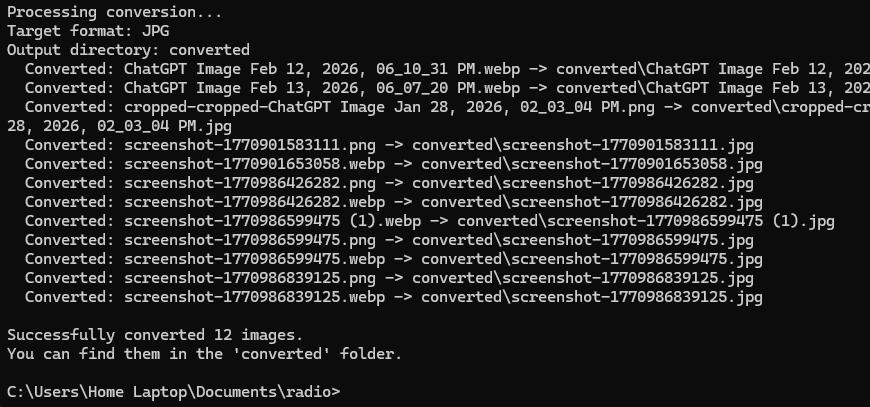
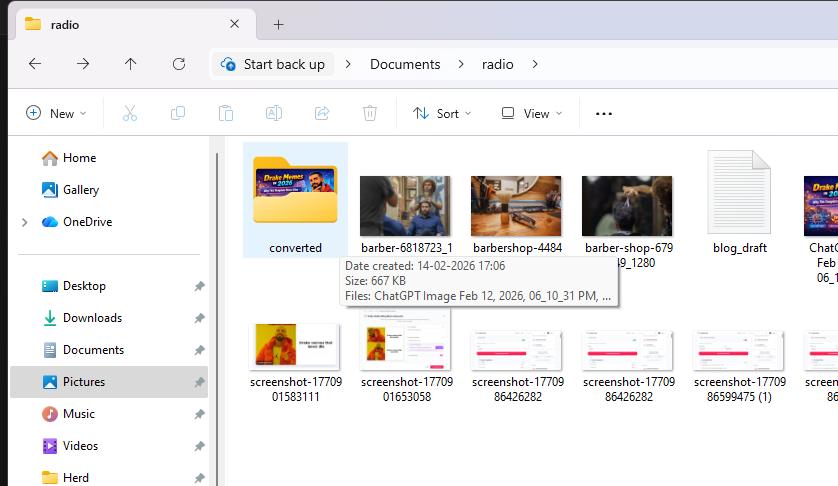
- Place the script in any folder containing the images you want to convert.
- Open your terminal (PowerShell, CMD, or Terminal).
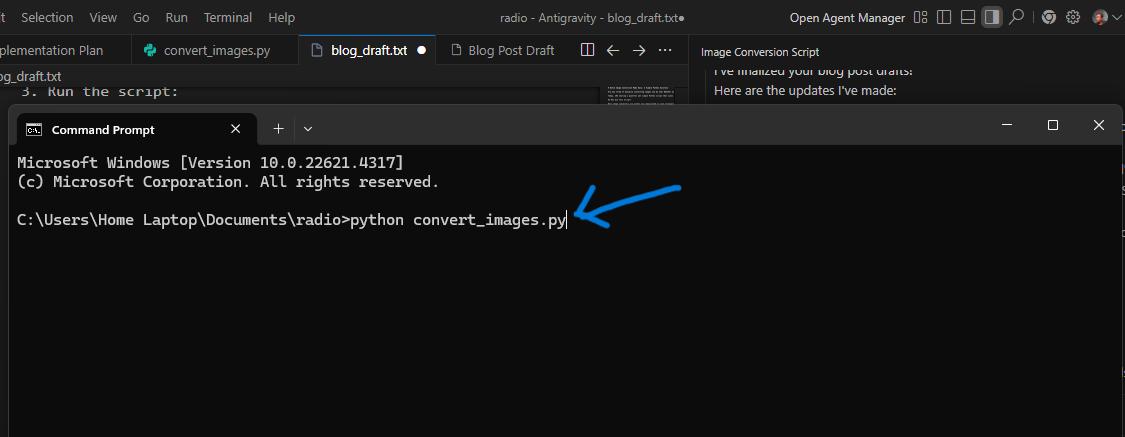
- Run the script:
python convert_images.py
The Interactive Menu
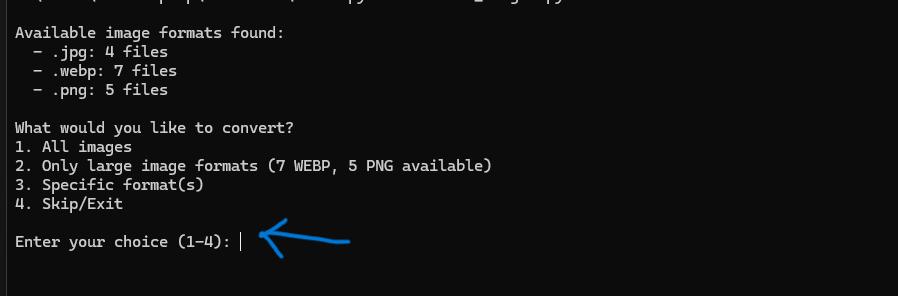
Once you run the script, it follows a simple two-step process:
-
Step 1: Choose which images to convert
- All images
- Only large formats (WebP, PNG, etc.)
- Specific formats (e.g., only your
.giffiles)
-
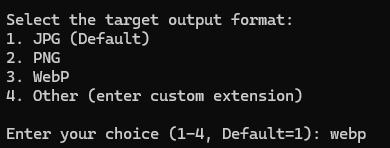
Step 2: Choose your target output format
- JPG
- PNG
- WebP
- Custom format of your choice
Advanced Options
If you prefer automation, you can skip the interactive menu using command-line arguments:
-
Specify format:
python convert_images.py --format png -
Custom output folder:
python convert_images.py --output my_finished_images -
Skip questions and convert immediately:
python convert_images.py --yes
💡 Tip: Using
--yesis perfect for automation scripts or server environments where no manual input is possible.
Full Source Code
Alt: Full Python source code for the convert_images.py batch image converter script
import os
import argparse
from pathlib import Path
from collections import Counter

try:
    from PIL import Image
except ImportError:
    print("Error: The 'Pillow' library is not installed.")
    print("Please install it by running: pip install Pillow")
    exit(1)

# Constants
SUPPORTED_EXTENSIONS = {".jpg", ".jpeg", ".png", ".webp", ".bmp", ".tiff", ".gif", ".ico", ".ppm", ".tga"}
LARGE_FORMATS = {".webp", ".png", ".tiff"}

def scan_directory():
    """Scans the current directory for supported images and returns a count by extension."""
    counts = Counter()
    for file_path in Path(".").iterdir():
        if file_path.is_file() and file_path.suffix.lower() in SUPPORTED_EXTENSIONS:
            counts[file_path.suffix.lower()] += 1
    return counts

def get_target_format_choice():
    """Interactively asks the user for the target output format."""
    print("\nSelect the target output format:")
    print("1. JPG (Default)")
    print("2. PNG")
    print("3. WebP")
    print("4. Other (enter custom extension)")

    choice = input("\nEnter your choice (1-4, Default=1): " ).strip()

    if choice == "2":
        return "png"
    elif choice == "3":
        return "webp"
    elif choice == "4":
        custom = input("Enter custom extension (e.g., bmp, tiff): ").strip().lower()
        return custom.replace(".", "") if custom else "jpg"
    else:
        return "jpg"

def get_user_choice(counts):
    """Interactively asks the user which formats to convert."""
    if not counts:
        print("No supported image files found in the current directory.")
        return set()

    print("\nAvailable image formats found:")
    for ext, count in counts.items():
        print(f"  - {ext}: {count} files")

    # Calculate large format details
    large_format_details = []
    total_large = 0
    selected_large_exts = set()
    for ext in LARGE_FORMATS:
        if ext in counts:
            count = counts[ext]
            large_format_details.append(f"{count} {ext.replace('.', '').upper()}")
            total_large += count
            selected_large_exts.add(ext)

    large_label = f"Only large image formats ({', '.join(large_format_details)} available)" if large_format_details else "Only large image formats (None found)"

    print("\nWhat would you like to convert?")
    print("1. All images")
    print(f"2. {large_label}")
    print("3. Specific format(s)")
    print("4. Skip/Exit")

    choice = input("\nEnter your choice (1-4): ").strip()

    if choice == "1":
        return set(counts.keys())
    elif choice == "2":
        return selected_large_exts
    elif choice == "3":
        print("\nEnter extensions separated by commas (e.g., .png, .webp):")
        raw_exts = input("> ").lower().split(",")
        selected = {ext.strip() if ext.strip().startswith(".") else "." + ext.strip() for ext in raw_exts if ext.strip()}
        return {ext for ext in selected if ext in counts}
    else:
        return set()

def convert_images(target_format="jpg", output_dir_name="converted", selected_extensions=None):
    """Converts images of selected extensions to the target format."""
    if selected_extensions is None:
        selected_extensions = SUPPORTED_EXTENSIONS

    # Create the output directory if it doesn't exist
    output_dir = Path(output_dir_name)
    output_dir.mkdir(exist_ok=True)

    print(f"\nProcessing conversion...")
    print(f"Target format: {target_format.upper()}")
    print(f"Output directory: {output_dir}")

    count = 0
    # List files in the current directory
    for file_path in Path(".").iterdir():
        if file_path.is_file() and file_path.suffix.lower() in selected_extensions:
            # Skip files in the output directory if it is the current directory
            if file_path.parent == output_dir.absolute():
                continue

            try:
                # Open the image
                with Image.open(file_path) as img:
                    # Convert to RGB if saving as JPG (Pillow needs RGB for JPEG)
                    if target_format.lower() in ["jpg", "jpeg"] and img.mode in ("RGBA", "P"):
                        img = img.convert("RGB")

                    # Define output file name
                    output_file_name = file_path.stem + "." + target_format.lower()
                    output_path = output_dir / output_file_name

                    # Determine the format string for Pillow
                    pil_format = target_format.upper()
                    if pil_format == "JPG":
                        pil_format = "JPEG"

                    # Save the image
                    img.save(output_path, pil_format)
                    print(f"  Converted: {file_path.name} -> {output_path}")
                    count += 1
            except Exception as e:
                print(f"  Failed to convert {file_path.name}: {e}")

    if count == 0:
        print("\nNo images were converted.")
    else:
        print(f"\nSuccessfully converted {count} images.")
        print(f"You can find them in the '{output_dir}' folder.")

if __name__ == "__main__":
    parser = argparse.ArgumentParser(description="Batch convert images in the current directory.")
    parser.add_argument(
        "--format",
        type=str,
        default="jpg",
        help="The target image format (e.g., jpg, png, webp, bmp). Default is jpg."
    )
    parser.add_argument(
        "--output",
        type=str,
        default="converted",
        help="The directory to store converted images. Default is 'converted'."
    )
    parser.add_argument(
        "--yes",
        action="store_true",
        help="Skip interactive mode and convert ALL images immediately."
    )

    args = parser.parse_args()

    # Scan first
    counts = scan_directory()

    if not counts:
        print("No supported image files found in the current directory.")
        exit(0)

    if args.yes:
        # Non-interactive mode
        convert_images(args.format, args.output, set(counts.keys()))
    else:
        # Interactive mode
        selected_input_exts = get_user_choice(counts)
        if selected_input_exts:
            target_fmt = get_target_format_choice()
            convert_images(target_fmt, args.output, selected_input_exts)
        else:
            print("Operation canceled.")
Also Check My Image Converter Web tools
JPG to PNG Converter (Transparent)
FAQ
What happens to my original images?
Your original files are never modified or deleted. The script creates a separate converted/ folder (or your custom output folder) to keep everything safe.
Can this handle millions of images?
Yes. The only real limitation is your system’s hardware (CPU, RAM, and disk speed). The script is designed for large-scale batch processing.
Does it support transparency when converting to JPG?
Yes. When converting from formats with transparency (like PNG or WebP) to JPG, the script automatically replaces transparent areas with a solid background to prevent errors.
Can I automate this in a server environment?
Absolutely. Use the --format, --output, and --yes flags to run the script non-interactively for automated workflows.
Which format is best for web performance?
For most websites, JPG works well for photos, while WebP offers better compression with high quality. PNG is ideal when you need transparency.
Conclusion
Converting large images to other formats doesn’t have to be slow, manual, or risky. With this Python batch script, you can process thousands — or even millions — of images safely and efficiently.
You’ve now learned how to install Python, set up Pillow, run the script, choose formats, and even automate the entire process. Whether you're optimizing a website, cleaning up storage, or preparing media for deployment, this tool gives you full control at scale.
Start converting smarter — not harder.
Related Posts

Whiteboard Animation Generator with Python: A Complete Step-by-Step Guide
21 min · 823 views

How to Create and Host a Website for Free Using Claude AI and Cloudflare Pages (2026 Guide)
6 min · 4,669 views

How to Get a Free GLM-5 API Key and Use It for Coding Projects (2026)
4 min · 4,356 views

💬 Comments (1)
Leave a Comment