Use AI Models Unlimited for FREE: No Token Limits for Coding (2026)

AI coding agents are becoming essential tools for developers in 2026. However, one major challenge many developers face is high token usage costs, especially when using popular AI models via APIs. Even open-source models accessed through platforms like OpenRouter can still feel expensive due to token consumption.
The good news? NVIDIA now offers free and unlimited access to open-source AI models through its developer API. This means you can build, test, and code using powerful AI models without worrying about token limits or costs.
In this guide, you'll learn exactly how to get a free NVIDIA Developer API key and how to integrate it into VS Code using the Kilo Code extension for seamless AI-powered coding.
Step-by-Step Guide to Get NVIDIA API Key and Use It
Step 1: Go to NVIDIA Developer Explore Page
Visit the NVIDIA developer platform using the link below:
https://build.nvidia.com/explore/discover
This is where NVIDIA provides access to its AI models and developer tools.
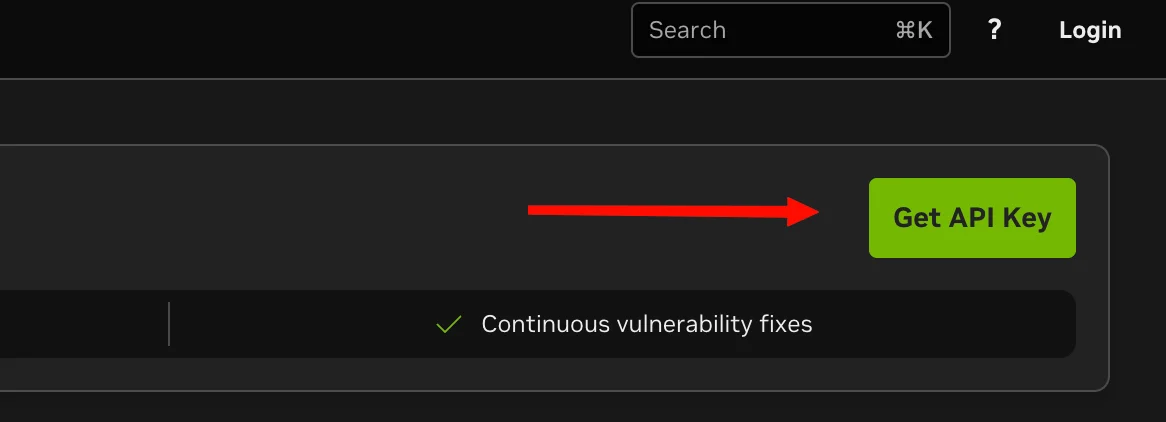
💡 Tip: Bookmark this page for quick access to new AI models and updates.
Step 2: Create an Account and Log In
Create a new account if you don’t already have one. During registration:
- Enter your basic details
- Verify your mobile number when prompted
Once verification is complete, log in to your account.
💡 Tip: Make sure your phone number is active to avoid verification issues.
Step 3: Click on “Get API Key”
After logging in successfully:
- Look for the “Get API Key” button
- Click it to generate your API key
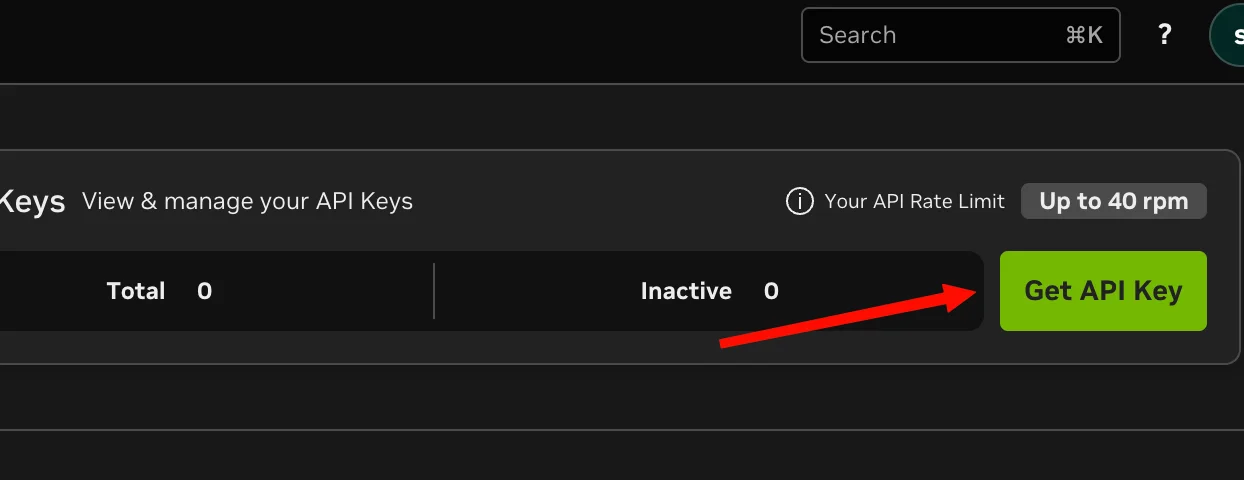
💡 Tip: Keep your API key private and do not share it publicly.
Step 4: Copy Your API Key
Once your API key is generated:
- Copy it immediately
- Save it in a secure place (like a password manager or notes app)
💡 Tip: You may not be able to view the full key again later, so store it safely.
Step 5: Open VS Code and Install Kilo Code Extension
Now, open VS Code:
- Go to the Extensions tab
- Search for “Kilo Code”
- Install the extension
If it’s already installed, proceed to settings.
💡 Tip: Restart VS Code after installation to ensure smooth setup.
Step 6: Configure NVIDIA API in Kilo Code
In VS Code:
-
Open Settings
-
Select OpenAI Compatible option
-
Set the Base URL to:
https://integrate.api.nvidia.com/v1 -
Paste your NVIDIA API key into the API key field
-
Select ai model
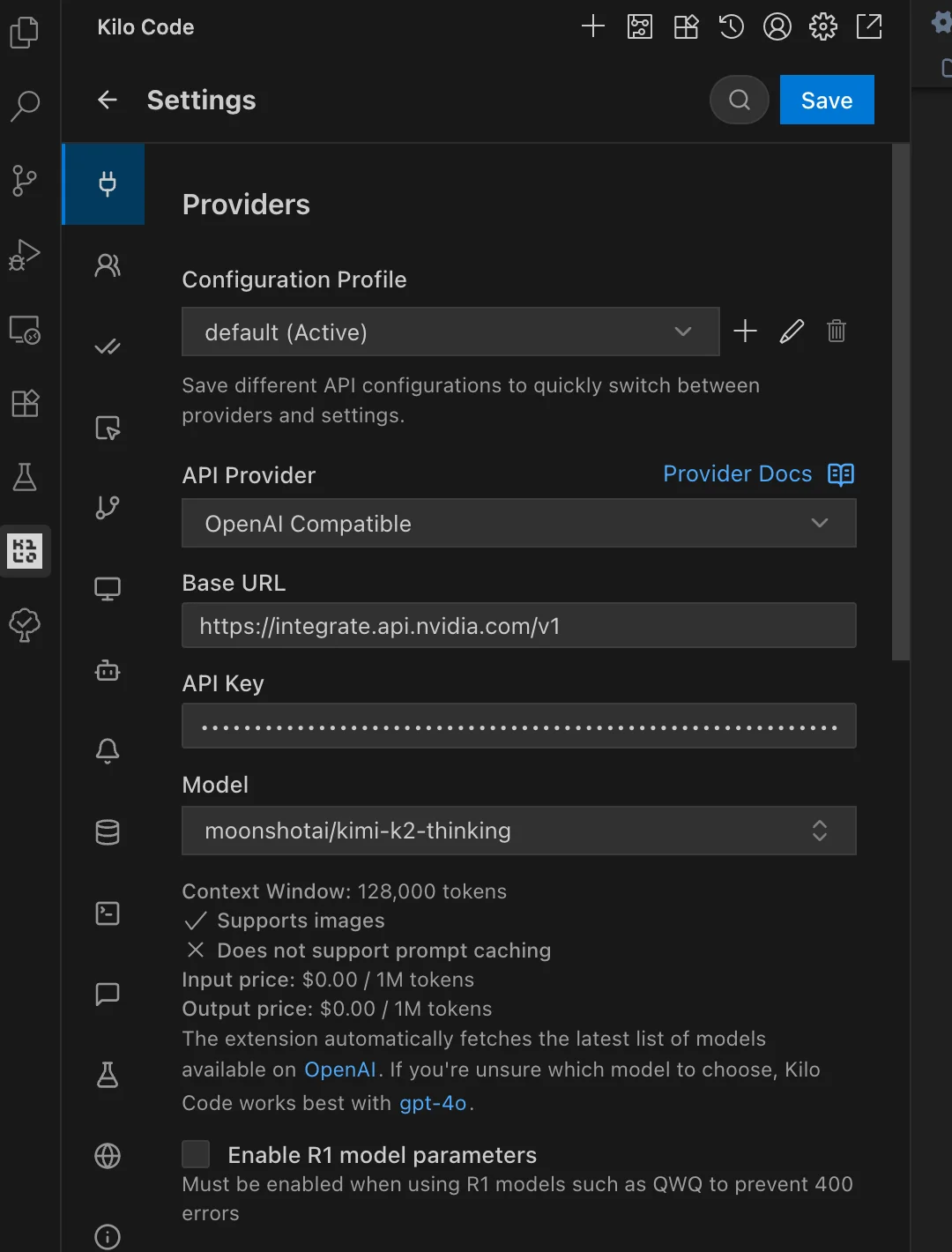
💡 Tip: Double-check there are no extra spaces when pasting your API key.
Step 7: Start Using Free AI Models for Coding
That’s it! 🎉
You can now:
- Use free and unlimited open-source AI models
- Generate code, debug, and build projects inside VS Code
- Avoid high token costs completely
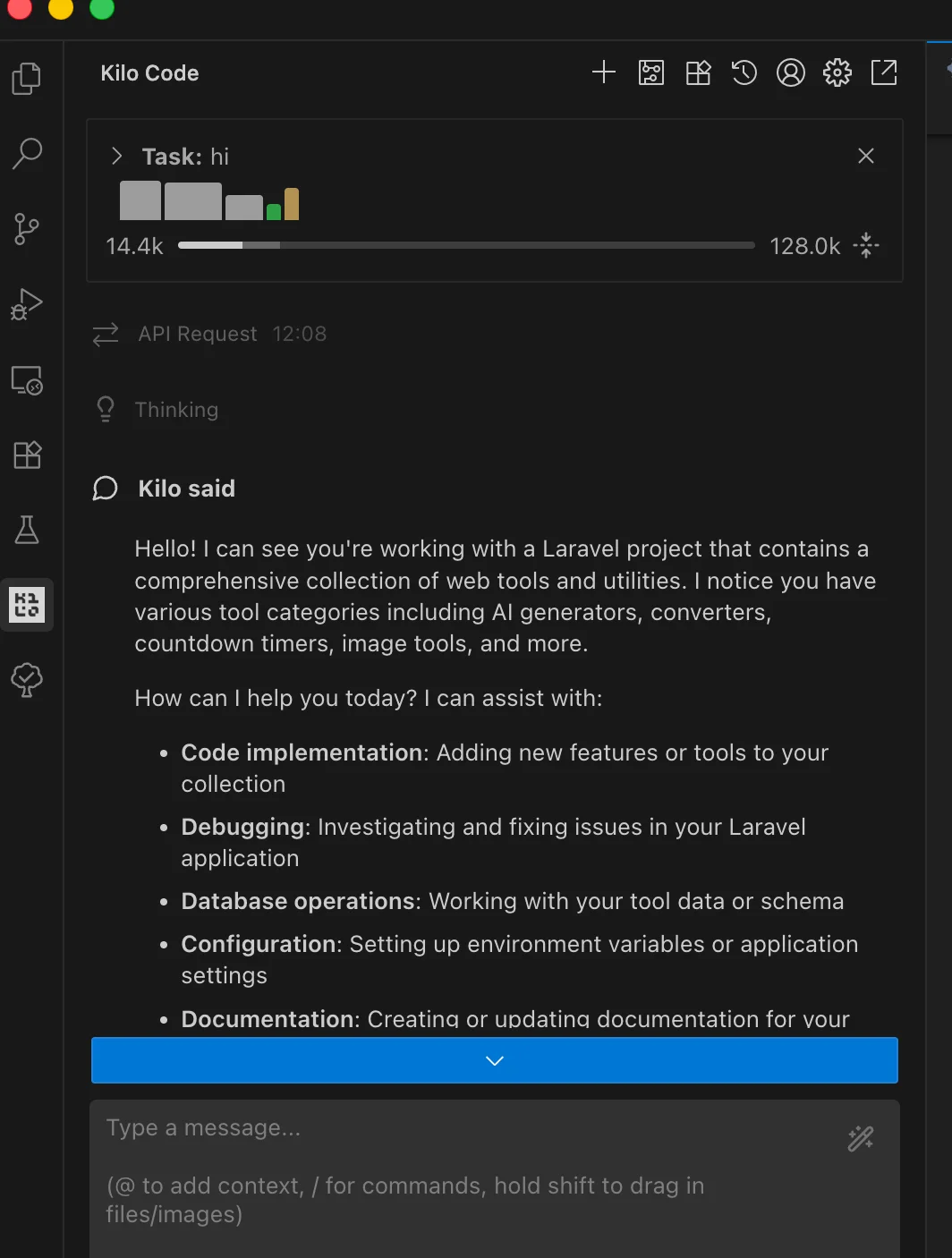
💡 Tip: Experiment with different prompts to get the best coding results.
FAQ
What is the NVIDIA Developer API?
The NVIDIA Developer API provides access to powerful AI models that developers can use for tasks like coding, automation, and content generation.
Is the NVIDIA API really free?
Yes, NVIDIA offers free access to open-source AI models, making it a great alternative to paid APIs with high token costs.
Can I use this API with other tools?
Yes, as long as the tool supports OpenAI-compatible APIs, you can integrate NVIDIA’s API.
What is Kilo Code extension?
Kilo Code is a VS Code extension that allows you to connect AI models for coding assistance using OpenAI-compatible APIs.
Why is this better than OpenRouter or paid APIs?
Unlike many platforms, NVIDIA’s API offers free and unlimited usage, helping you avoid token limitations and costs.
Related Posts
14 Free AI Image Generators You Can Use in 2026 (Unlimited & No Watermark Options)
16 min · 499 views
Punch the Monkey Latest Update (2026) – Viral Story, Zoo Progress & Create Your Own Meme
1 min · 1,536 views

How to Use ChatGPT Codex for Free in 2026: Complete Step-by-Step Guide
4 min · 5,543 views

💬 Comments (0)
Leave a Comment
No comments yet. Be the first to comment!