
How to Use AI Powered Configuration in Google Search Console

Google has introduced AI powered configuration in Google Search Console, making it easier than ever to analyze your website’s search performance. This new AI integration helps you uncover hidden keyword data, discover ranking opportunities, and better understand how users find your website in Google Search.
With this update, you can use simple prompts like “show me queries containing ‘how to’” or “find ‘what is’ keywords” to filter your performance data instantly. Instead of manually creating complex filters, AI does the work for you.
In this step-by-step guide, you’ll learn exactly how to use the new AI powered configuration inside Google Search Console in 2026 and how it can help you improve your SEO strategy.
Step 1: Go to Google Search Console
First, open your browser and go to:
https://search.google.com/search-console
Sign in to your Google account if you are not already logged in.
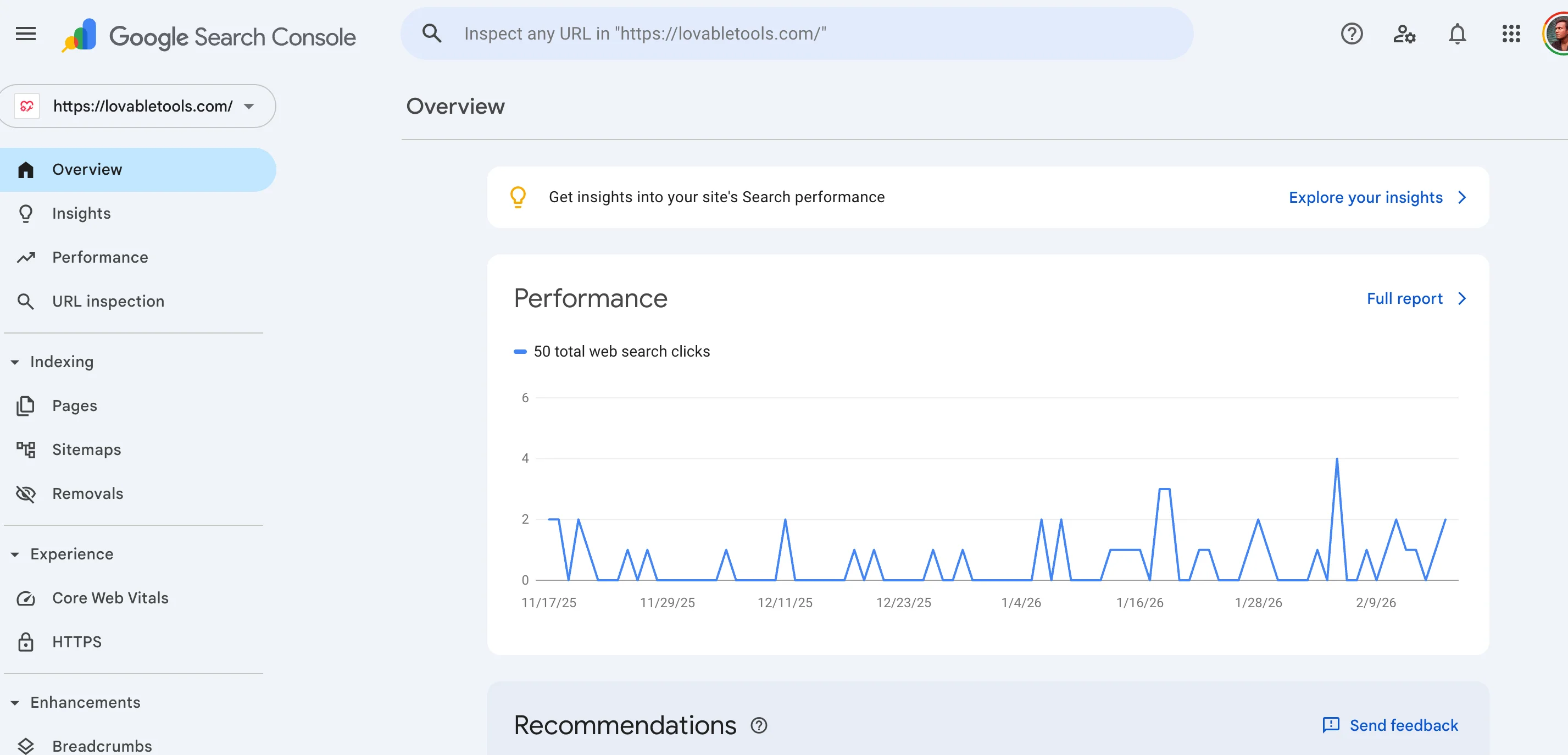
💡 Tip: Make sure you select the correct property (website) if you manage multiple sites.
Step 2: Click the Performance Sidebar Link
After logging in, look at the left-hand sidebar menu.
Click on Performance to open your website’s search performance report. This section shows important metrics like:
- Total Clicks
- Total Impressions
- Average CTR
- Average Position
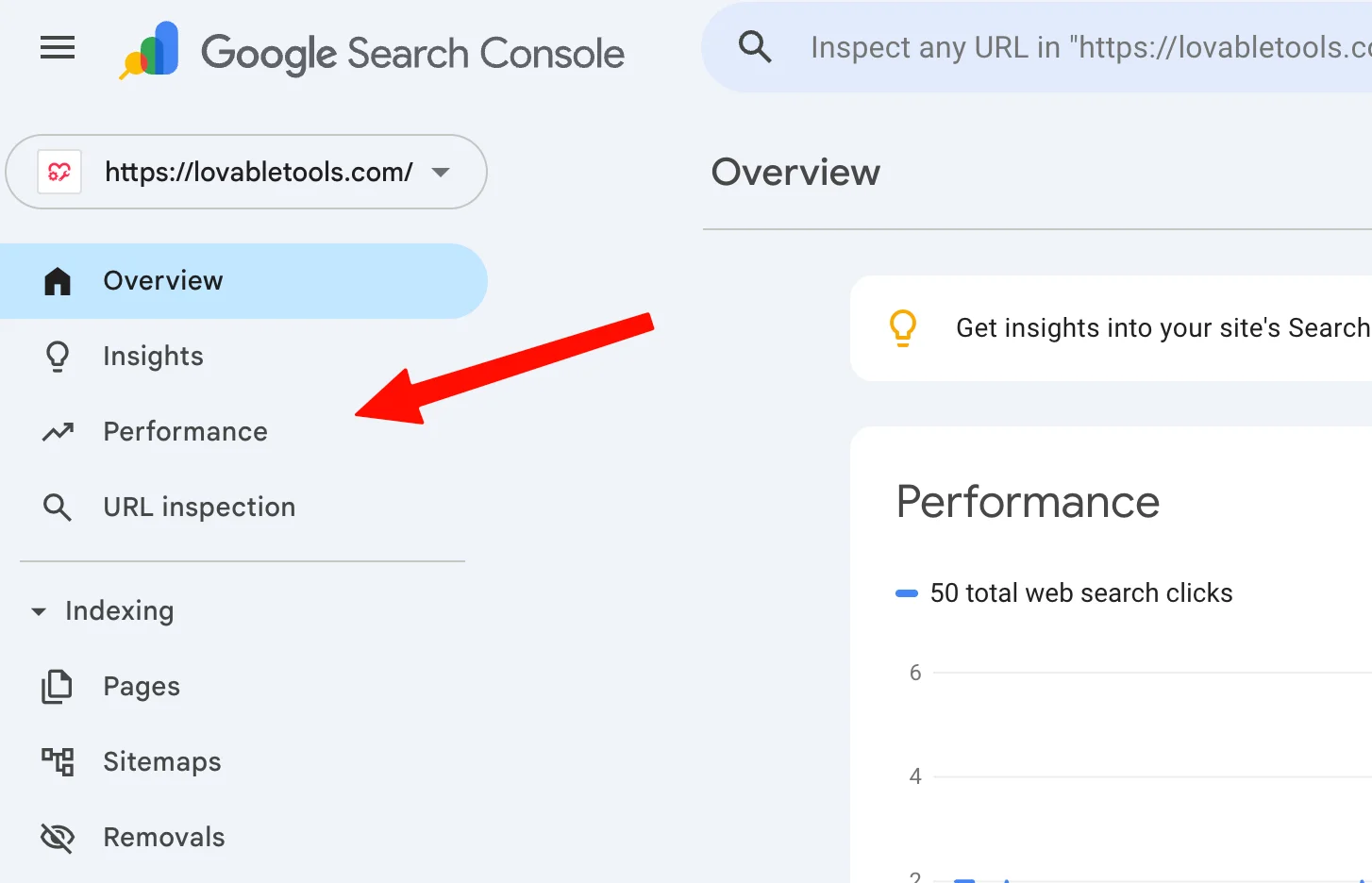
💡 Tip: The Performance report is where you can analyze search queries, pages, countries, and devices.
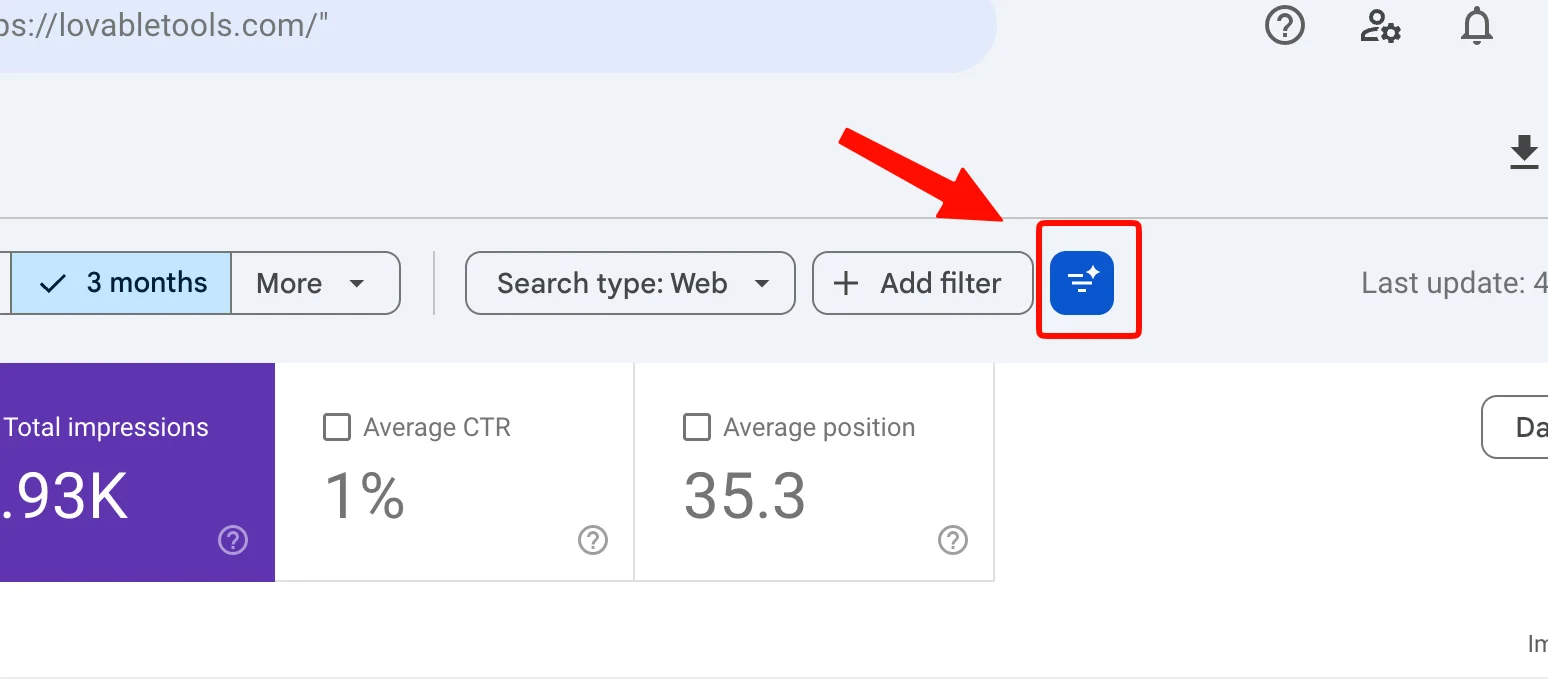
Step 3: Find the AI Configuration Icon and Click It
Inside the Performance report, look for the new AI powered configuration icon.
It appears near the filtering area where you normally add search filters.
Click on this icon to open the AI configuration panel.
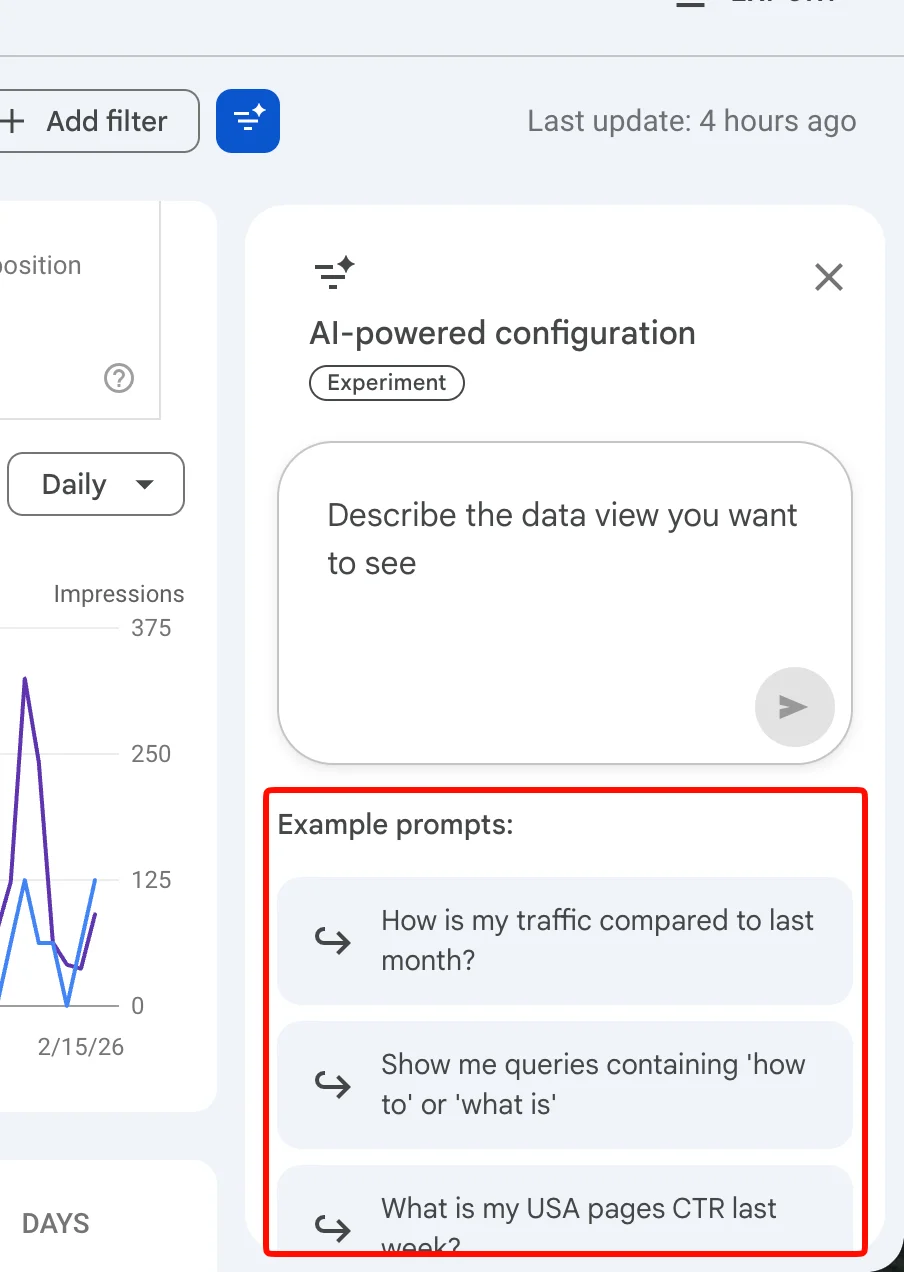
Step 4: Use Example Prompts or Write Your Own Instruction
After clicking the AI icon, you will see:
- A text input field
- Example prompts below it
You can either:
- Click one of the example prompts, or
- Write your own instruction (for example:
- “Show me queries containing ‘how to’”
- “Find ‘what is’ keywords”
- “Filter queries with low CTR but high impressions”)
Then click the Submit button.
Why This Is Powerful
This AI feature helps you discover hidden keyword insights such as:
- How many “how to” keywords your site ranks for
- How many “what is” search queries bring impressions
- Keyword opportunities for new blog posts
- Existing pages that need optimization
This data is extremely useful for:
- Content planning
- Updating old blog posts
- Improving on-page SEO
- Finding long-tail keyword opportunities
Step 5: Review the Suggested Configuration and Click Apply
After a few seconds, the AI tool will generate a suggested filter configuration based on your prompt.
You will see the suggested configuration appear below the input box.
Now you have two options:
- Click Apply to use the suggested filter
- Click Dismiss if you want to change your prompt
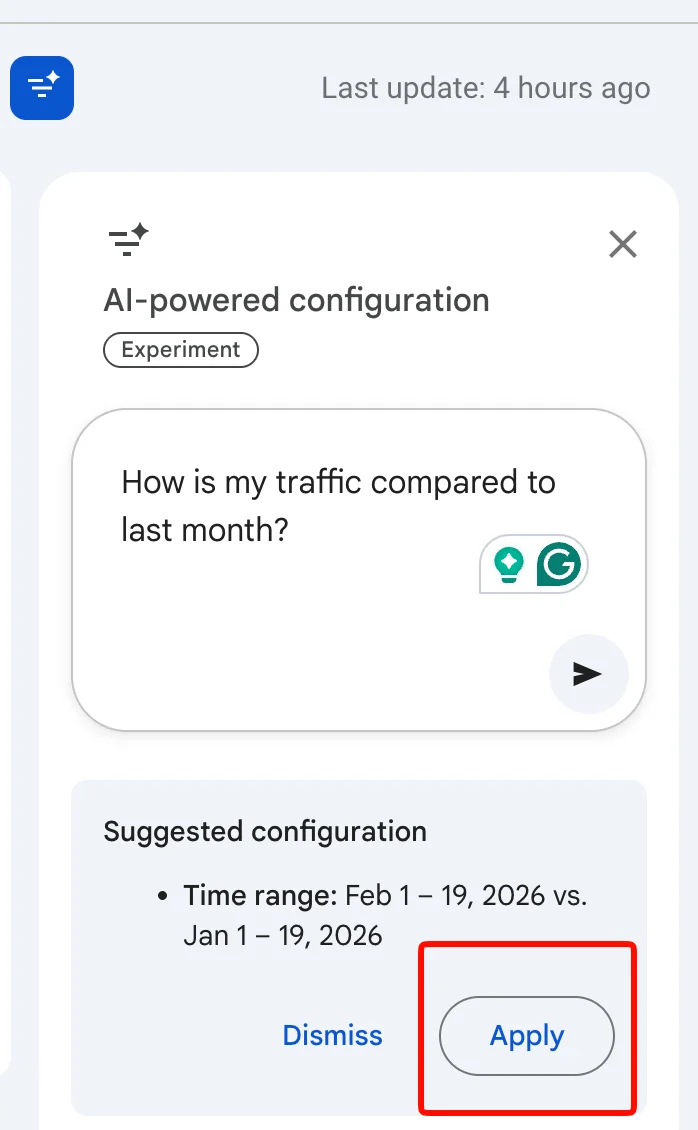
💡 Tip: If the result is not what you expected, adjust your prompt and try again for better filtering.
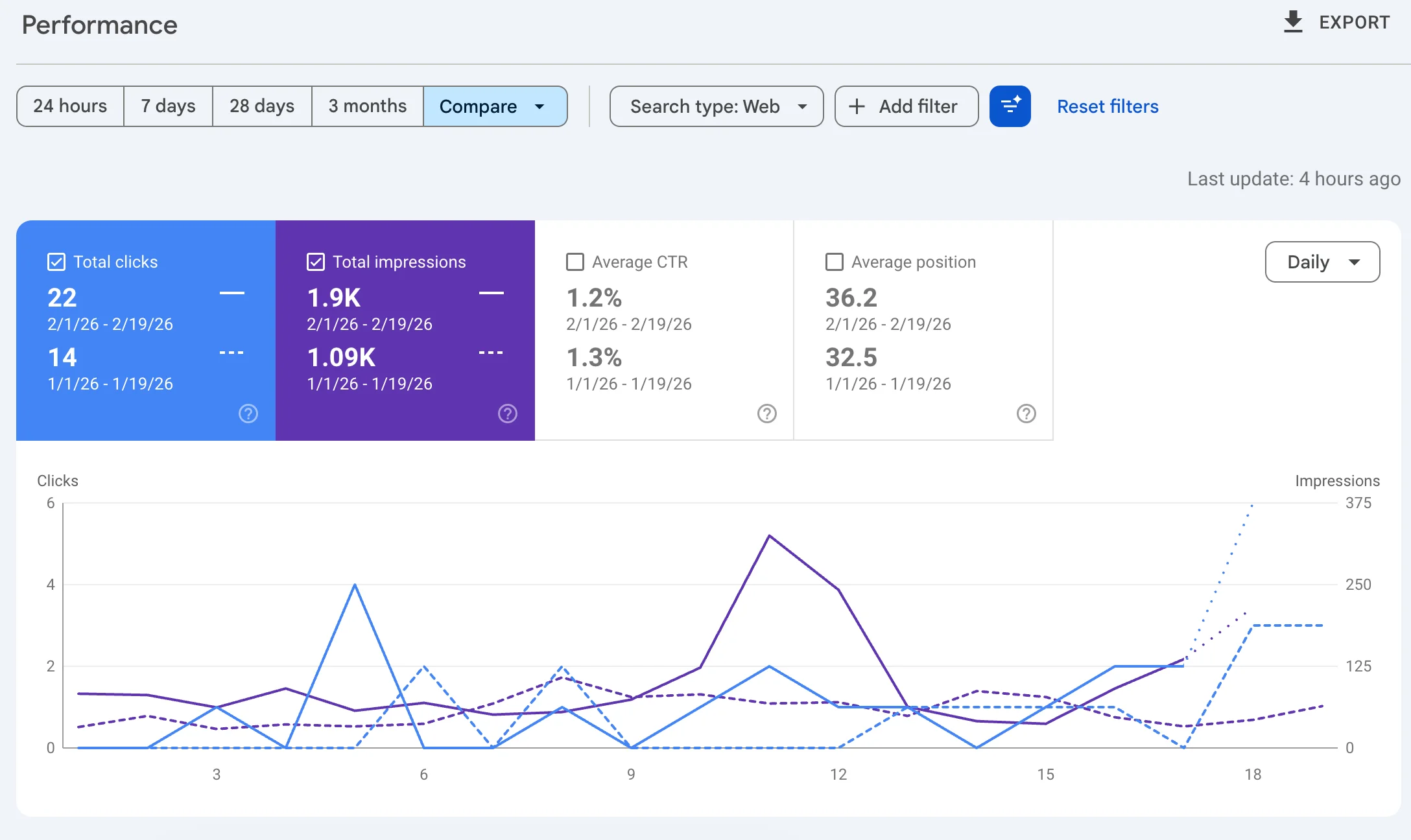
Step 6: View Your Filtered Search Console Data
If you click Apply, your Performance report will now show filtered data based on the AI configuration.
For example, if you asked for:
- “Show me queries containing ‘how to’”
You will now see only the search queries that include “how to”.
This allows you to:
- Identify content gaps
- Create new SEO-focused blog posts
- Optimize pages already ranking
- Improve your keyword targeting strategy
That’s all! 🎉
If you discover new AI updates inside Google Search Console, feel free to share your experience in the comments and keep testing new prompts to unlock more SEO insights.
Related Posts

14 Free AI Image Generators You Can Use in 2026 (Unlimited & No Watermark Options)
16 min · 637 views

Use AI Models Unlimited for FREE: No Token Limits for Coding (2026)
4 min · 2,467 views

Punch the Monkey Latest Update (2026) – Viral Story, Zoo Progress & Create Your Own Meme
1 min · 1,673 views

💬 Comments (1)
Leave a Comment