
How to Get a Free GLM-5 API Key and Use It for Coding Projects (2026)

⚠️ Important Update (March 2026) The free GLM-5 API key mentioned in this guide is only available until April 1, 2026. After that, access may be restricted or discontinued.
👉 But don’t worry — there’s a better alternative.
You can now use GLM-5 and other AI models completely FREE with no token limits using NVIDIA’s developer API.
🚀 Check out this updated guide: 👉 https://lovabletools.com/blog/use-ai-models-unlimited-for-free-no-token-limits-for-coding-2026
This method is more stable and ideal for long-term coding projects.
If you’re looking to build AI-powered coding tools in 2026, GLM-5 is one of the most exciting OpenAI-compatible models available right now. The best part? You can get free API access until April 30 through Modal and start experimenting immediately.
In this step-by-step guide, you’ll learn how to get your free GLM-5 API key, configure it in VS Code using Kilo Code or Cline, and start building your own coding projects. Follow each step carefully and you’ll be ready to launch your next AI-powered app in minutes.
Step-by-Step Guide to Get and Use a Free GLM-5 API Key
Step 1: Go to the GLM-5 Endpoint Page on Modal
First, open your browser and visit:
https://modal.com/glm-5-endpoint
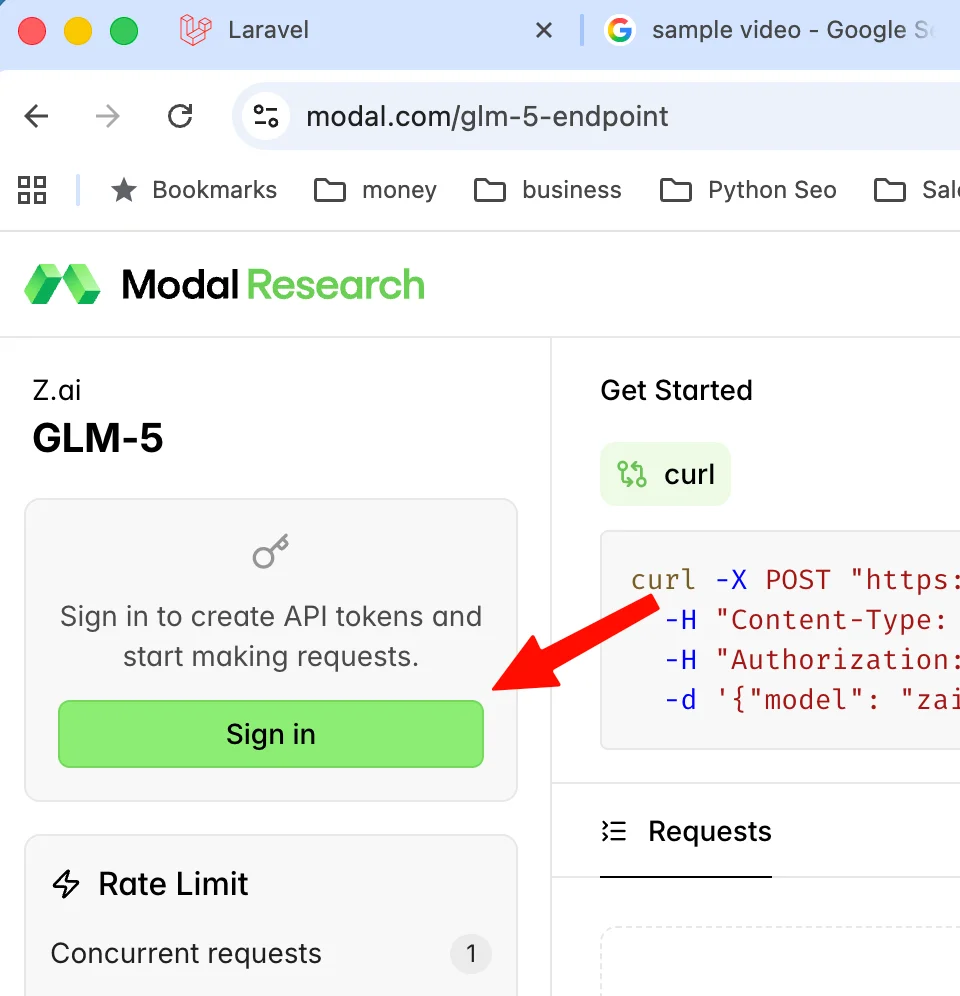
Click the Sign In button at the top right. If you don’t already have an account, create a new one.
💡 Tip: Use your primary email so you can easily manage your API tokens later.
Step 2: Check the Free Access Notice
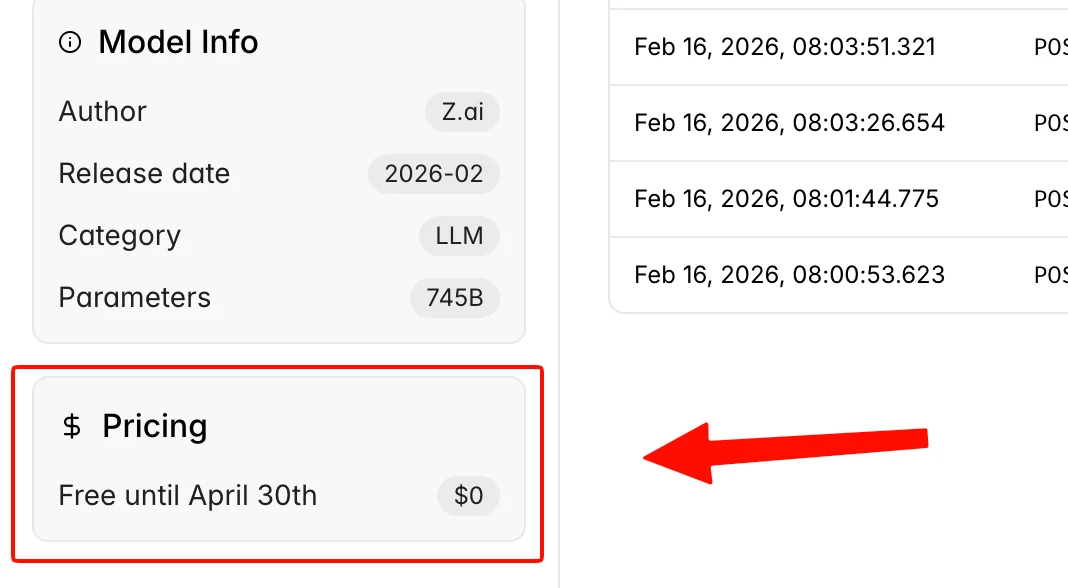
After logging in, look at the left-side menu. Scroll down near the pricing section.
You will see information that GLM-5 access is free until April 30. Make sure this notice is still active before continuing.
💡 Tip: Always confirm the free period before creating production projects.
Step 3: Create a New API Token
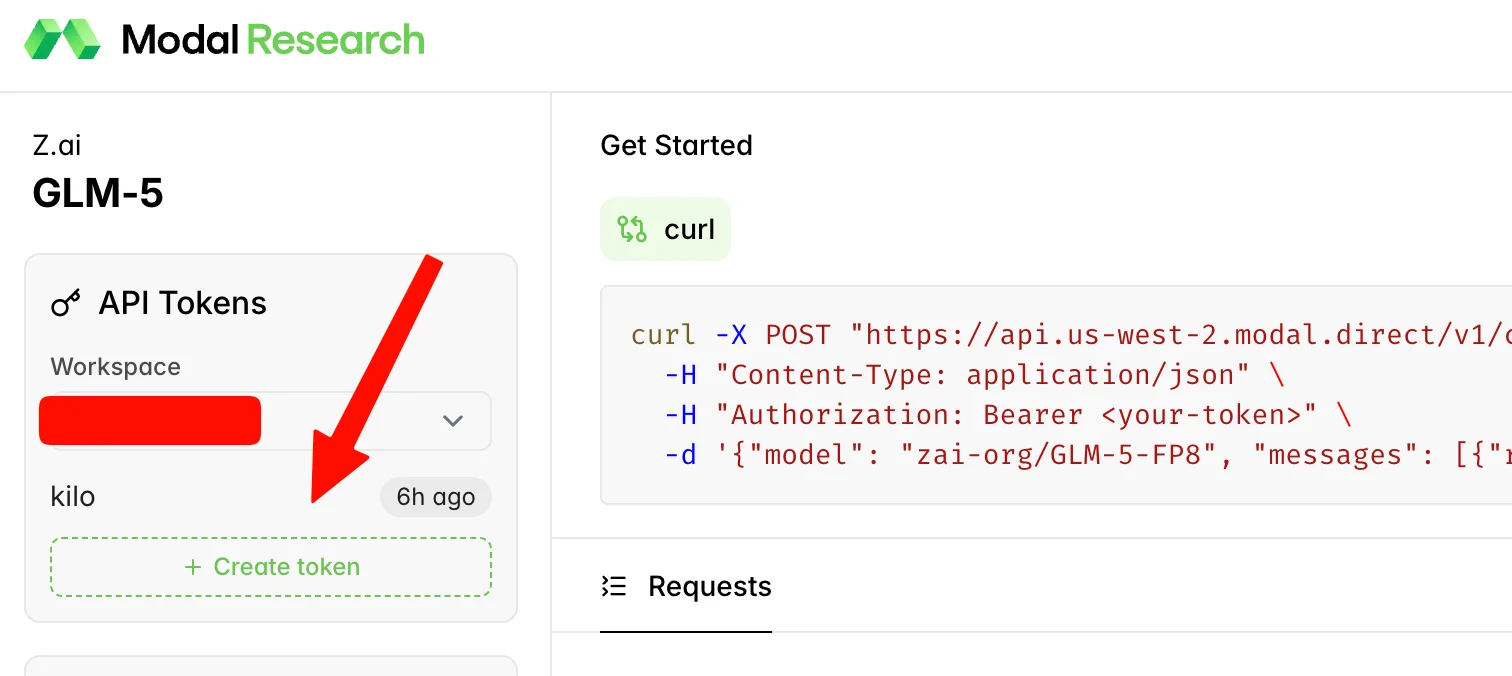
Now it’s time to generate your API key.
- Click the Create Token button.
- Enter a name for your token (for example:
GLM-5-Key). - Press Enter.
- Wait a few seconds while the system generates your token.
Step 4: Copy Your GLM-5 API Token
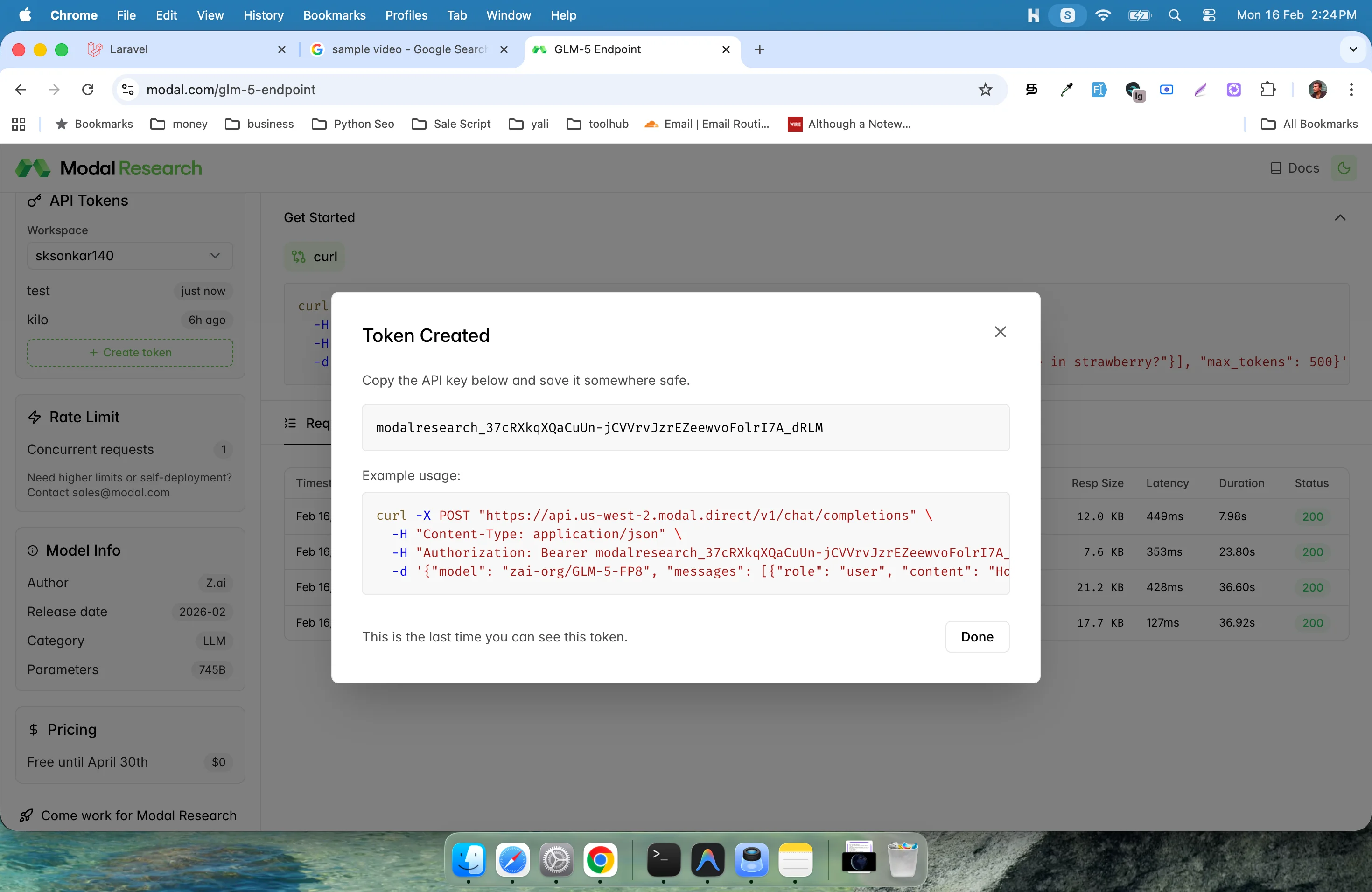
A popup window will appear showing your newly generated API token.
- Copy the token immediately.
- Store it in a secure place (like a password manager).
- Close the popup.
⚠️ Important: You may not be able to see the full token again after closing the window.
Step 5: Open VS Code and Install Kilo Code or Cline
Now open Visual Studio Code.
Go to the Extensions tab and install either:
- Kilo Code
- Cline
Both support OpenAI-compatible providers.
After installing, open the extension Settings.
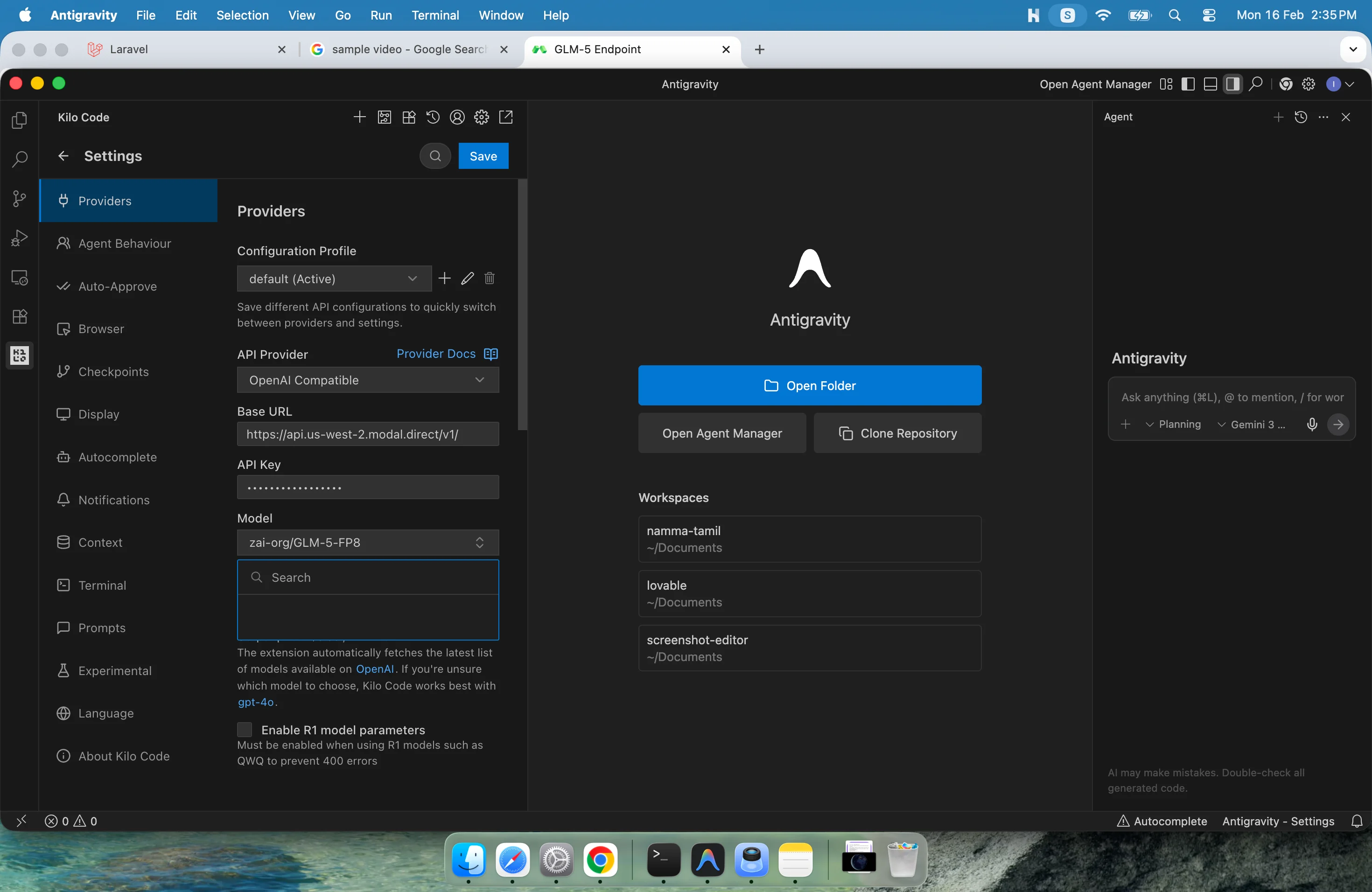
Set the Provider to OpenAI Compatible.
Step 6: Configure the Base URL
Inside the provider settings, find the Base URL field.
Copy and paste the following:
https://api.us-west-2.modal.direct/v1/
Next, copy the model ID below:
zai-org/GLM-5-FP8
Paste it into the Model ID field inside the extension settings.
Then click the Save button.
Step 7: Start Using GLM-5 for Your Coding Projects
That’s it! 🎉
Now you can:
- Generate code
- Build AI apps
- Debug scripts
- Automate tasks
- Create development tools
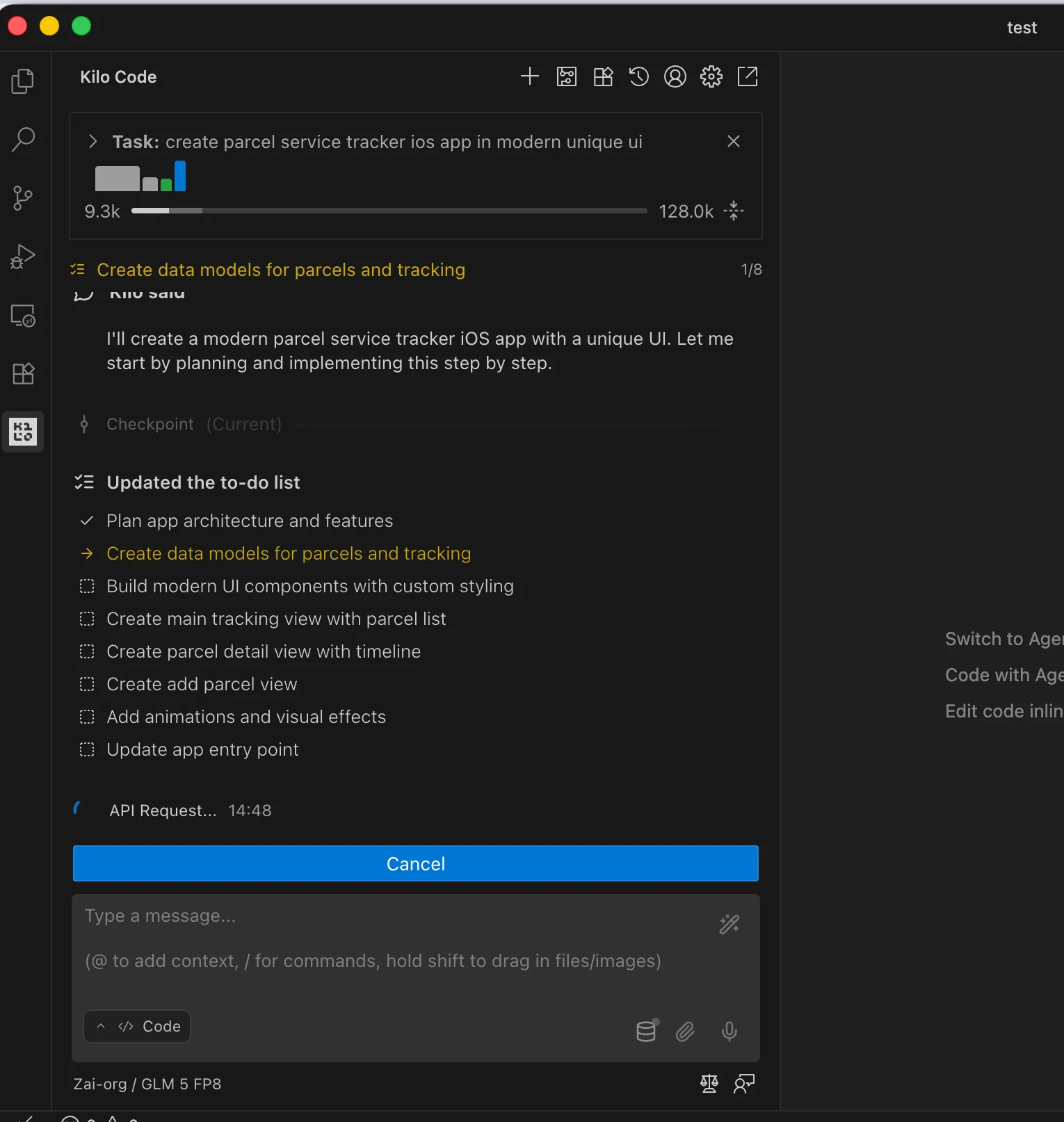
Open a new file and test it by asking the model to generate a function or explain a programming concept.
FAQ
Is GLM-5 really free?
Yes, Modal provides free access to the GLM-5 endpoint until April 30. Always check the pricing section to confirm availability.
Do I need special software to use it?
No. Any tool that supports OpenAI-compatible APIs can use GLM-5, including VS Code extensions like Kilo Code or Cline.
Can I use GLM-5 for real projects?
Yes. You can build apps, coding assistants, and automation tools. However, after the free period ends, you may need a paid plan.
Is GLM-5 good for coding?
Yes. It supports strong reasoning and code generation, making it useful for development tasks, debugging, and building AI-powered applications.
If you have any doubts, comment below and I can help you. Also, tell me how GLM-5 performs in your projects! 🚀
Related Posts

Whiteboard Animation Generator with Python: A Complete Step-by-Step Guide
21 min · 823 views

How to Create and Host a Website for Free Using Claude AI and Cloudflare Pages (2026 Guide)
6 min · 4,669 views

How Can You Convert Large Images to Other Formats? Easy Step-by-Step Guide
10 min · 726 views

💬 Comments (2)
Leave a Comment